Quotes on a job
Quotes on a job can come from Quote Studio (primary) or a CounterGo / Moraware PDF import (fallback).
Who can do this
Users with access to the job (typically Jobs and Quotes permissions).
Create in Quote Studio
- Open the job and go to the Quotes panel.
- Click Create in Quote Studio — the customer is preselected and the quote stays linked to this job.
- Draw, price, and save (see Draw and price a quote).
- Approve when the customer accepts, and Send to customer or Share quote as needed.
Import a CounterGo PDF (fallback)
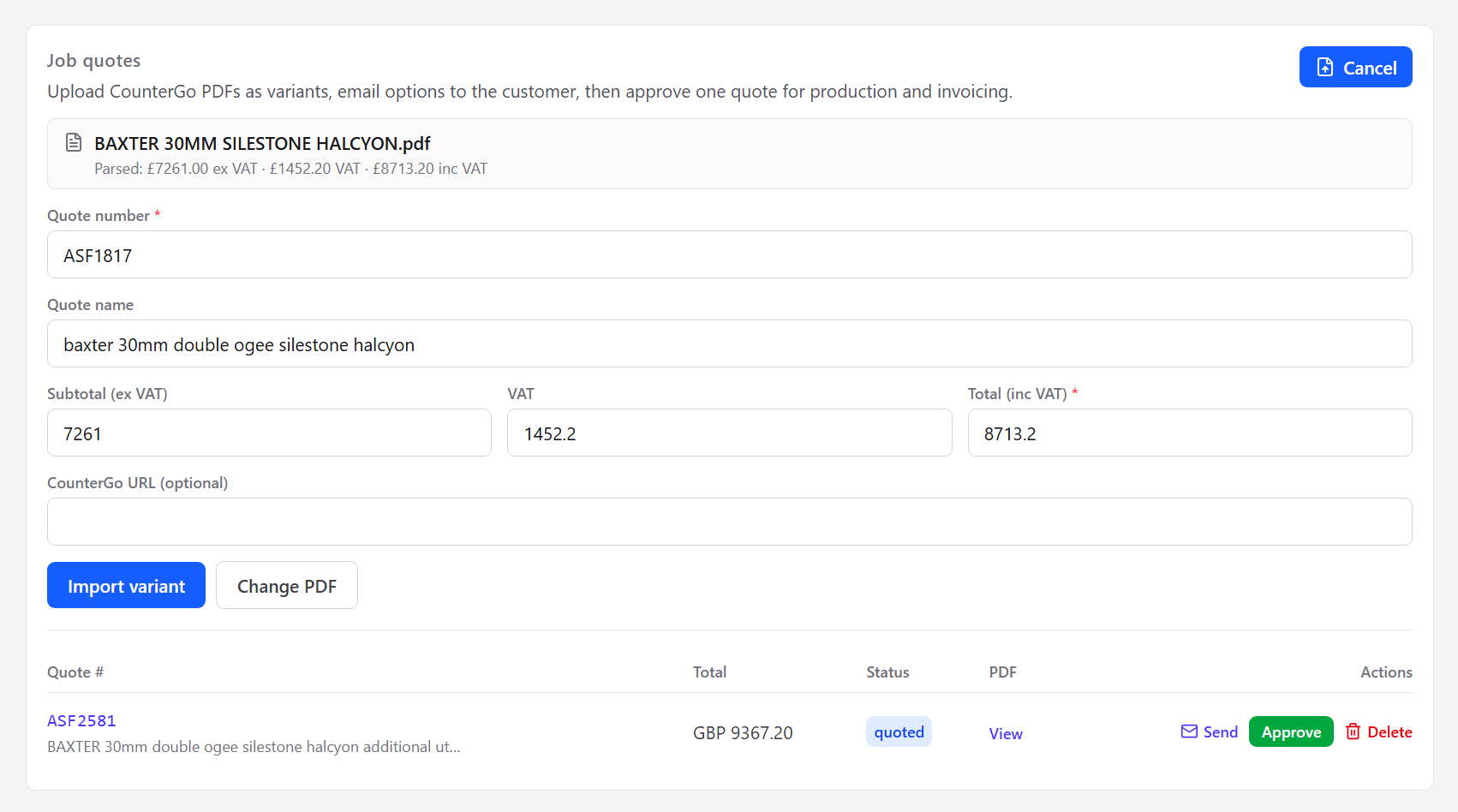
- On the Quotes panel, import a CounterGo PDF (or enter quote metadata).
- Review the totals parsed from the PDF, then import.
- Import additional PDFs as more variants when the customer asks for changes or options.
- Approve and Send to customer as usual — deposits follow your payment terms.
Compare two variants
When a job has two or more quote variants:
- On the Quotes panel, click Compare.
- Choose variant A and variant B.
- Review both side by side (drawings and layout live in the CounterGo PDF when comparing imports).
- Check the cost differences underneath (totals and line items).
- Close Compare, then Send or Approve the option you want from the variants list.
Compare is read-only — it does not approve or send for you.
/dashboard/jobs/[id])