Managing stock
Maintain your inventory catalogue so jobs can assign the right materials. By default, new items are individual slabs (stone). Quantity items such as adhesives or sinks are optional — turn them on under Settings → Stock.
Steps
- Open Stock and click Add item (or edit an existing row).
- For slabs, pick brand → colour → thickness → Standard and/or Jumbo. SKU and name fill in from that. Then set status, location, preferred supplier, unit cost, and sell prices (end customer and optional showroom). Quote Studio uses the showroom price when the quote customer is a showroom. New materials are slab-tracked unless you have enabled other stock.
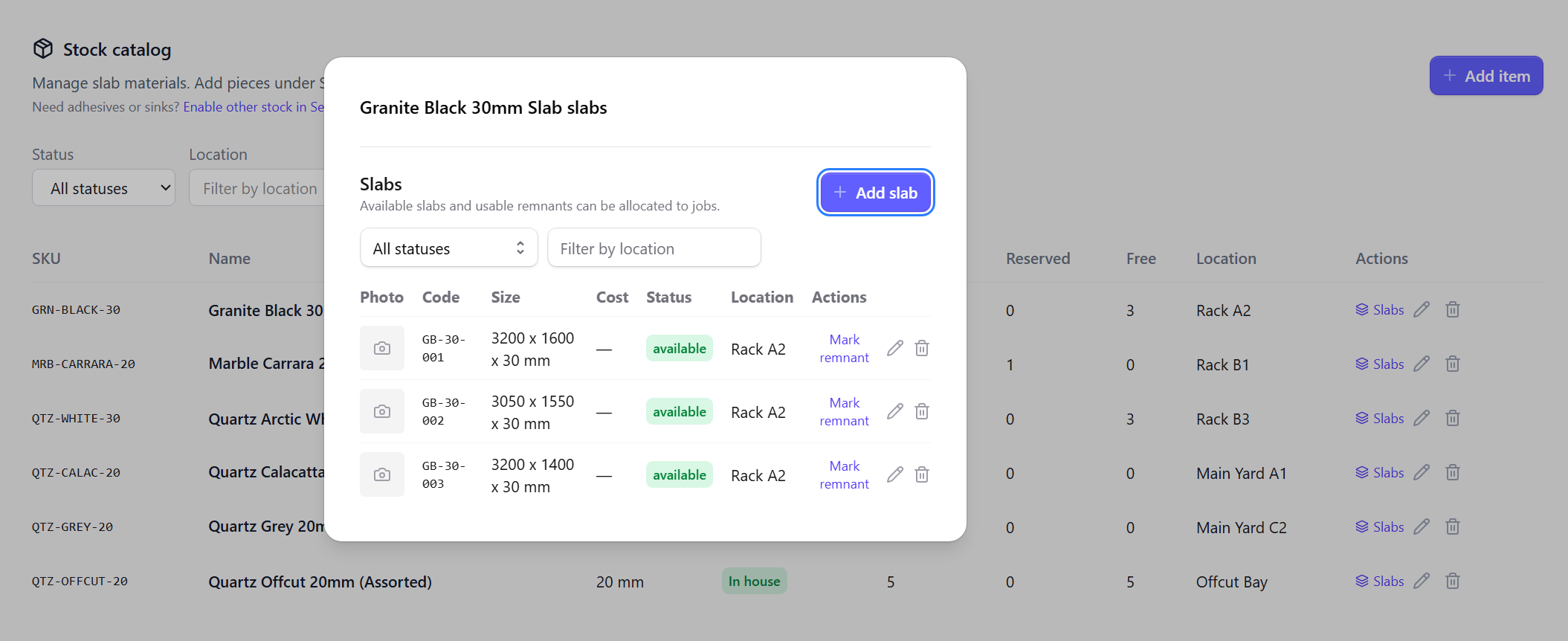
- Save, then open Slabs on the item. Add each full slab or remnant with:
- Shop code — short code to write on the slab edge (suggested for you; you can change it)
- Supplier ID (optional) — the mark already on the piece from the yard or quarry
- Length × width × thickness, location, and optional photos
- Optionally print labels (yard sheet, sample card, and/or side wrap) — see Printing slab labels.
- Catalog quantity for slab items follows the free piece count.
If you need adhesives, sinks, or other non-slab stock, open Settings → Stock and enable other stock. You can then choose Quantity tracking when adding items.
Refresh prices from a stockist CSV
When a stockist sends an updated price list, use Settings → Import & Export → Refresh stock prices to update unit costs (and optionally sell prices) on materials you already hold. See Import and export.
Soft-plan on quotes
On a quote, use Planned stock to pick slabs you expect to use. Planning does not lock the piece for other jobs. When the customer accepts the quote, CutBench tries to reserve those slabs for the job. If a planned piece was allocated elsewhere, the job shows Needs reassignment so you can pick another slab.
Remnants after a cut
When a job material has an allocated slab, use Mark used on the job. You can:
- Consume the slab with no leftover, or
- Create one or two remnant pieces (size + optional photo of the leftover)
If the linked quote had a slab plan, remnant sizes can fill in from the nest leftover. Settings → Stock sets the minimum length and width worth keeping as a remnant.
Those remnants stay linked to the parent slab and appear as free stock for later jobs. Quote Studio can also nest a new quote onto a yard remnant when the pieces fit.
If the approved quote had a slab plan, CutBench can pre-fill remnant sizes from the leftover on that nest. Check the millimetres before you save — the cut may have differed. Set the smallest leftover worth keeping under Settings → Stock → Minimum remnant size.
On a later quote, Quote Studio can offer to nest on a remnant you already have when it is large enough, so you do not open a full slab by default. See Quote Studio.